AI keys
Duplicate detection normally runs on Heedback's shared AI key, at no cost to you. With AI keys you can run it on your own OpenAI or Gemini key instead. Your provider bills you directly, and your posts go to the provider you chose, under your own agreement with them.
AI keys are available on the Team plan and up. Only workspace owners and admins can see or change them.
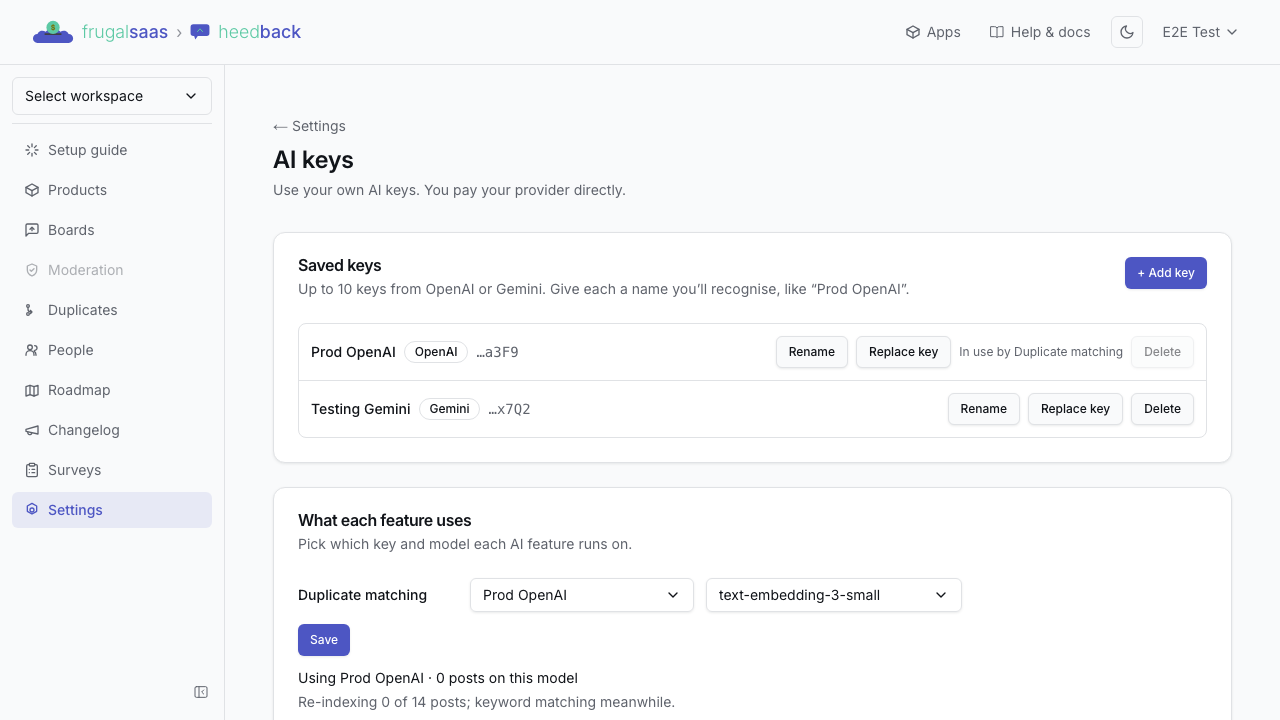
Open Settings → AI keys. The page has two boxes: your saved keys, and which key each AI feature uses.
Save a key
- Select + Add key.
- Give it a name you'll recognise, like "Prod OpenAI".
- Pick the provider (OpenAI or Gemini) and paste the key.
- Select Test & save.
We check the key with one tiny request before saving it. If the provider turns it down, nothing is saved and you'll see a short message saying so. After saving, only the last 4 characters are ever shown. Nobody, including us, can view or export the full key from Heedback.
You can save up to 10 keys, and each name must be unique. Two keys from the same provider are fine, for example one per OpenAI project.
Anthropic isn't offered because it has no embeddings API, which duplicate matching needs.
Each saved key has three buttons:
- Rename changes the name only.
- Replace key swaps in a new key for the same provider. It's checked the same way first. Anything using the old key switches to the new one.
- Delete removes the key.
Choose what Duplicate matching uses
Under What each feature uses, Duplicate matching has two dropdowns:
- Key: Heedback's shared key (the default), or one of your saved keys.
- Model: the embedding models available for that key's provider.
Select Save. The line below tells you what's in use, for example "Using Prod OpenAI · 412 posts on this model".
Posts are compared only with others indexed by the same model. So if you change the provider or model, Heedback asks you to confirm, then rebuilds every match in the background. Until that finishes you'll see "Re-indexing 120 of 412 posts", and suggestions use keyword matching. Switching to another key with the same provider and model needs no rebuild.
To go back to the default, choose Heedback's shared key and save.
A key that's in use can't be deleted
If Duplicate matching uses a key, its Delete button is greyed out with "In use by Duplicate matching". Point the feature at another key (or the shared key) first, then delete it.
If your key stops working
If your provider later rejects the key, for example because it was revoked, the page shows "That key was rejected by OpenAI" and the key is marked Rejected. Duplicate matching then uses keyword matching. It never switches back to Heedback's shared key by itself, because you chose your own provider for your data. Replace the key, or choose another, to get AI matching back.
The same applies if a key in use is deleted: the page asks you to choose another.
If your plan changes
Below Team, your saved keys and your choice are kept, but not used. Duplicate matching uses Heedback's shared key instead, on plans that include duplicate detection. You can still rename and delete keys and switch back to the shared key. Adding or replacing keys and choosing one for a feature are locked. Move back to Team and your choice applies again.
Audit log
Adding, replacing, renaming and removing a key, and changing which key a feature uses, each appear in your audit log. They record the key's name and provider, never the key itself.