Boards
A board is a collection of posts — feature requests, bugs, or ideas. Your users vote and comment on posts so you can see what matters most. Boards are where heedback listens.


Creating a board
From your dashboard, choose New board and give it a name. Boards start out public — a shareable URL anyone can visit without an account — and you can make one private any time from its own page (see Private boards).
Renaming a board
Board names carry an emoji, and both parts are edited in place — there's no separate edit screen. Hover a board on the Boards list (or its own page) and click the pencil beside the name: the name becomes an input with an emoji picker docked inside it. Press <kbd>Enter</kbd> or click away to save, <kbd>Esc</kbd> to discard.
Posts, votes, and comments
Each post has a title, a description, a status, and a vote count. Anyone with access to the board can:
- Vote — one vote per person per post, so counts reflect real demand.
- Comment — discuss the idea in a thread; makers can reply publicly.
Makers can create, edit, merge, and re-status posts from the dashboard. On Startup and up, duplicate detection finds posts that ask for the same thing so you can merge them.
Record feedback for a customer (Startup)
When a customer tells you something on a call or in an email, you can record it for them — a vote, a comment, or a whole post.
A vote or a comment. On an approved post on a public board, open Record customer feedback in the dashboard. Search by customer name, email, or external ID if they are not among the recent People shown, then select them and record a vote or write a comment. You need permission to update posts for votes or create comments for comments. Each person can have at most one attributed vote on a post; recording one again leaves the vote count unchanged.
A post. On a public board, choose Add feedback, switch on This is from a customer, and enter their name (optional) and email. You need permission to create posts.
Recorded a vote by mistake? The same box lists the votes your team recorded on that post, each with a Remove button. A vote leaves that list once the customer votes on the post themselves — from then on it is their own vote.
A customer who isn't in the list
Under the customer picker, choose Customer not listed? Add by name and email. The email is required; the name is optional. Back to list returns to the picker.
- If the email belongs to a customer the widget has already verified, we record the feedback against their existing record and ignore the name you typed.
- If several verified customers share that email, we ask you to pick the right one from the list instead of guessing.
- Otherwise we add the customer to People with an Added by team tag. Typing the same email again later, in any letter case, reuses that record.
The email you type is shown only to your team — on the People page, the customer's own page, and the picker. It never appears on your public board, in the widget, in the API, or in webhooks, and we don't send that customer any email: a post recorded for them does not trigger status-change notifications.
What a People record means now
People holds two kinds of record:
- Verified — your widget sent a signed
identify()call for this person. Their name and email are the ones your server signed. - Added by team — a teammate typed this customer's name and email. Nobody has verified them, and they never show the Verified badge.
If your widget later sends a signed identify() call with the same email, the
team-added record becomes that verified person: it takes their signed name and
email, and every vote, comment and post your team recorded for them stays
attached. If that person already had a verified record, the two are combined
into it. Either way you end up with one record, not two.
How recorded feedback is labeled
These are team-recorded actions. A comment or post is labeled “Recorded by
team for …” on the dashboard and public board, and API responses include
recordedByTeam: true. If the person has no name on their People record, the
label reads “Recorded by team for customer” — their email and external ID are
never shown publicly. A post your team recorded never shows the Verified badge,
even after that customer is verified: the badge says who someone is, not that
they wrote text a teammate typed for them. The maker is the audit and analytics
actor.
This action is unavailable for private boards, merged posts, and posts awaiting or denied moderation.
Internal notes (Startup)
Sometimes the useful thing to write on a post is not for the customer: "this duplicates the billing work, don't promise a date". On a post in the dashboard, turn on Internal note beside the comment button, write, and choose Add note. The note appears in the same thread with a shaded background and an Internal lock label.
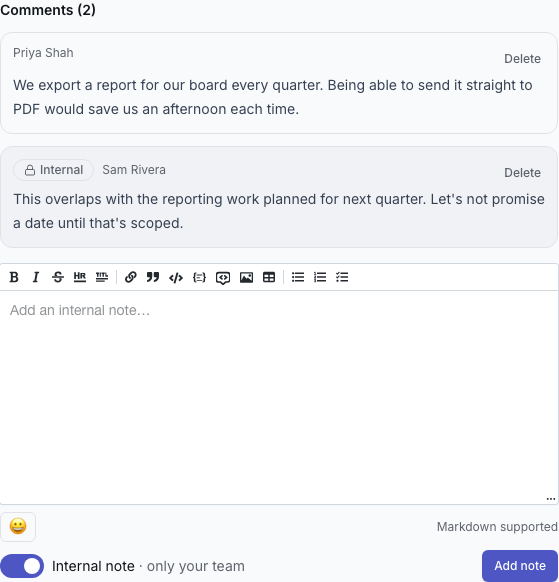
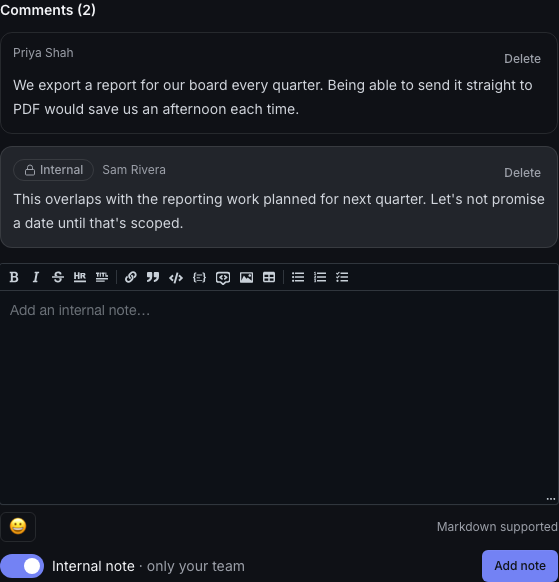
- Who can read a note: everyone in your workspace, viewers included. Nobody else — a note never appears on the public board, in the widget, or through the API.
- Who can write one: anyone who can comment.
- Notes are silent. A note sends no email, Slack message or webhook, and nothing to a linked issue tracker.
- A note stays a note. It cannot be made public later, and a public comment cannot be turned into a note. To share something from a note, write a new comment.
- The switch stays where you leave it. After you add a note it is still on, so the next thing you write is also a note. Turn it off to reply publicly.
If your workspace moves to the Free plan, the notes you already have stay readable to your team, stay hidden from customers, and can still be deleted. Only adding new ones needs Startup or above.
Working through feedback
Open a board to see feedback with vote counts and statuses. Use the status tabs, search, and sort controls to narrow the list. On plans with customer trait filtering, choose Filters to expand the rules; applied rules stay visible and combine with your search and status selection. Filtered views live in the URL, so you can bookmark them. Clear filters resets an empty filtered view.
Choose Add feedback at the top of the board to open the composer. Enter a title, optional details, and any required custom fields, then submit to open the new post. Moderation and privacy controls remain above the list.
To bring in existing posts, choose Import CSV beside Add feedback. See Import feedback for the supported columns and how historical vote totals are handled.
On smaller screens, use Navigation to open the sidebar. Closing it restores the full width for your feedback.
Change many posts at once (Startup)
Tidying up a busy board one post at a time is slow, so on Startup and up the board's list has a tick box on every row.
- Tick the posts you want to move. Select all, at the top left of the list, ticks every post in the current view.
- Choose the new status from Move to….
- Leave Notify followers ticked to tell people about the change, or untick it to move the posts quietly.
- Choose Apply, then confirm.
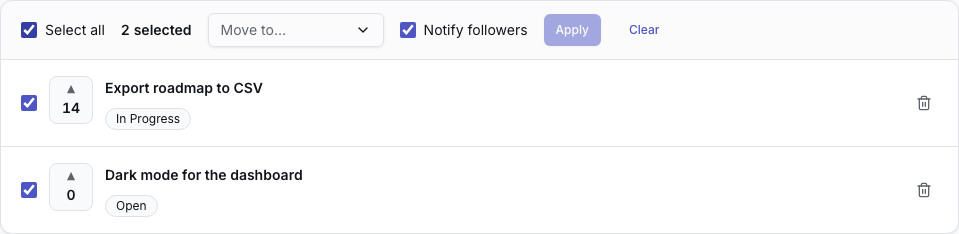
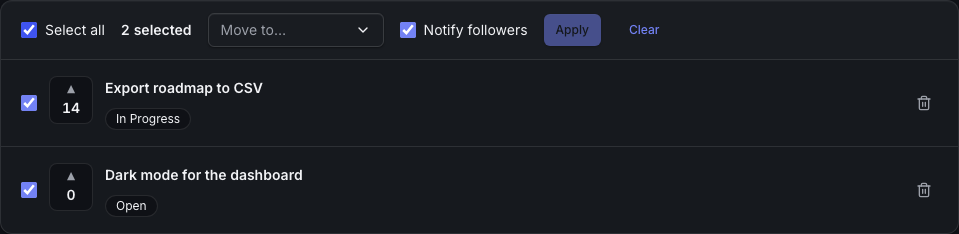
The list refreshes and one line under the bar tells you what happened, for example "12 moved to Planned, 2 already Planned, 1 skipped."
- Up to 50 posts at a time. On a longer list, Select all ticks the first 50 and says so. Apply, then repeat for the rest.
- Only what you can see is moved. If you change the search or the status tab after ticking, posts that dropped out of the list are left alone.
- Already means the post was in that status to begin with. Nothing changes for it and nobody is notified about it.
- Skipped means the post could not be moved: someone deleted it, merged it into another post, or moved it elsewhere while you were choosing.
- One email per follower. Someone following several of the posts you moved gets a single email listing them, not one per post. Slack gets one summary message for the whole batch. Each post's author and confirmed followers are told, the same people a single status change tells.
- Everything else is recorded per post. Each post still gets its own "Status changed" note, its own webhook, and its own update to a linked tracker issue, exactly as if you had changed it by hand.
On the Free plan the list has no tick boxes and a greyed-out Select button sits beside Import CSV. Changing one post's status from its own page is free on every plan.
Organize and control who posts
Two things make a board your own:
- Statuses & custom fields — rename the status workflow and capture structured data (severity, customer tier, …) on every post.
- Moderation — hold public and widget submissions in a queue for approval before they appear.
- Private boards — keep a board visible only to your team, excluded from every public surface.
Collecting feedback
Share your board two ways:
- Public page — send users your workspace board URL.
- Widget — embed heedback's widget on your own site so users post and vote without leaving your product (see Install the widget).
Next steps
Group your posts on the roadmap, and when a post is done,
publish a changelog entry so subscribers hear about it.