Single sign-on
Let your team sign in to heedback through your own identity provider — Okta, Microsoft Entra ID, Google Workspace, or anything else that speaks OIDC — and then require it, so nobody on your team keeps a standalone password for your workspace.
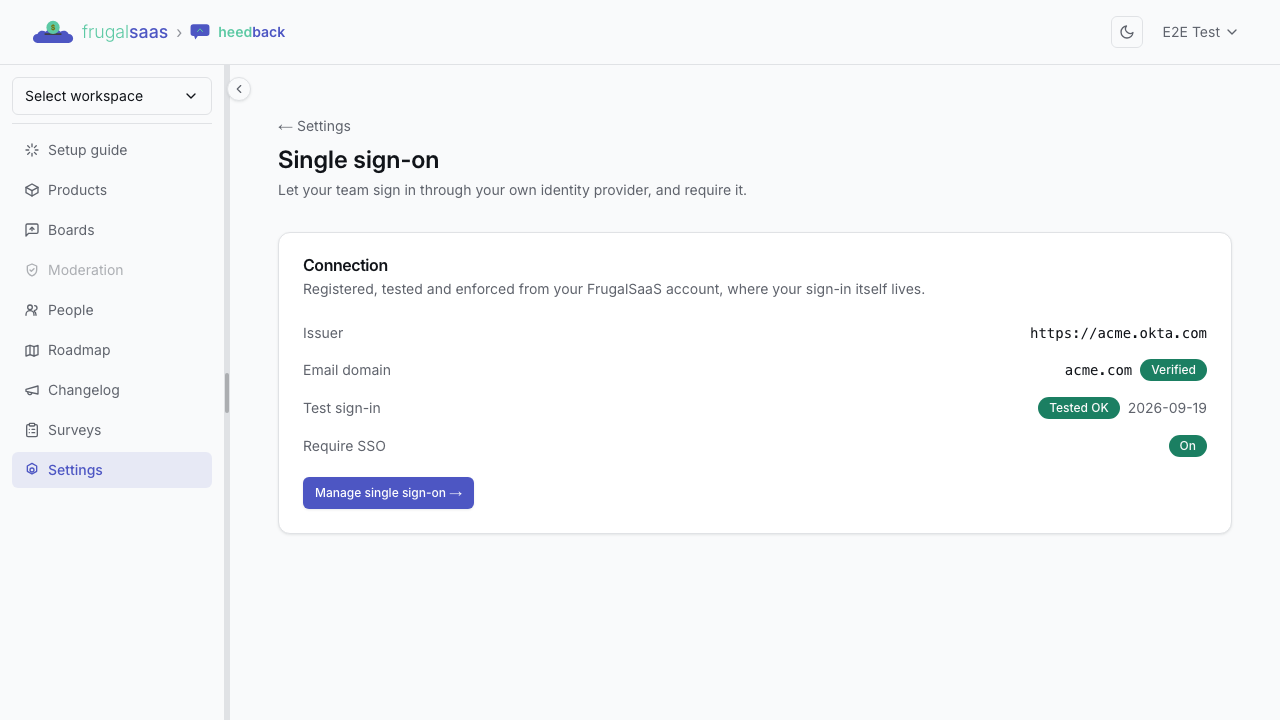
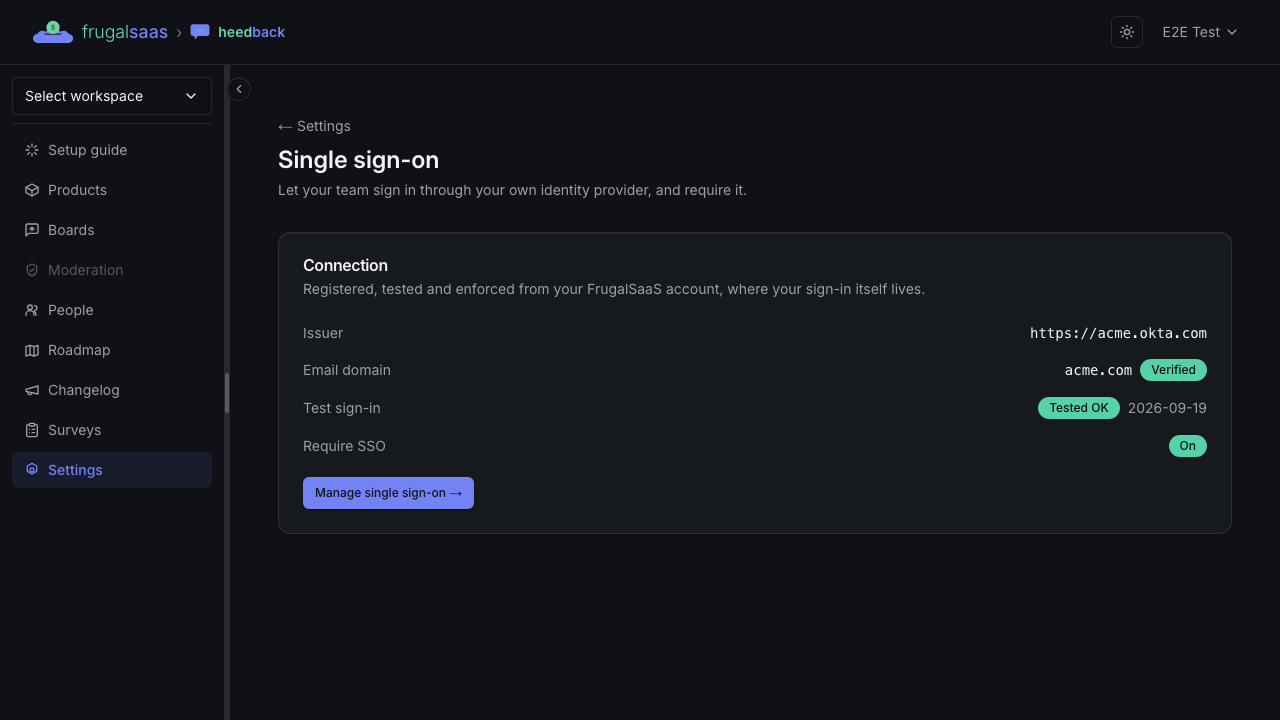
heedback shows you the status under Settings → Single sign-on. The controls themselves live in your FrugalSaaS account, because that's where signing in actually happens. Both are owner-only — see roles and permissions.
Setting it up
Four steps, in this order. Each one stays out of reach until the one before it is done, which is deliberate: every way we could let you enable enforcement before proving a sign-in works is a way to lock your own team out.
1. Register the connection
Create an OIDC application in your identity provider, then fill in the connection form in your account:
| Field | What to enter |
|---|---|
| Issuer URL | Your provider's issuer, e.g. https://acme.okta.com |
| Client ID | From the OIDC application you just created |
| Client secret | From the same application. Stored encrypted; we never show it back to you |
| Email domain | The domain your people sign in with, e.g. acme.com |
| Default role | The role a teammate gets the first time they sign in through your provider — Member or Admin |
We read your issuer's /.well-known/openid-configuration when you save and
store only the endpoints it advertises. If the document can't be fetched, is for
a different issuer, or points anywhere that isn't a public address, the save is
refused and nothing is stored — you get the field that's wrong rather than a
half-configured connection.
Every connection is registered with PKCE (S256). We validate the ID token against your provider's published keys on every sign-in, we don't accept your provider's word that an address is verified, and we don't accept provider-initiated sign-in at all — a sign-in has to start here.
Your provider will also ask the OIDC application for a redirect (callback) URL — Okta calls it the "Sign-in redirect URI", Microsoft Entra the "Redirect URI", Google the "Authorised redirect URI". Save the connection first: the id it contains is generated at that moment. Once you've saved, a Redirect URI panel appears on the page with the finished URL and a Copy button — paste that into your provider. If your provider won't let you create an application without a redirect URL up front, use a placeholder and correct it afterwards.
To change the connection later, edit the same form. Leaving the client secret blank keeps the stored one; typing a new one replaces it.
2. Verify your domain
You verify your own domain, and a connection can't be used until you have.
Press Show DNS record, publish the TXT record it gives you in your DNS,
then press Check DNS. It's one record, and you only do it once.
Until the domain is verified, every sign-in through the connection is refused —
including yours. That gate is the whole point: without proof that you control
acme.com, a connection claiming to speak for acme.com is just a claim.
The match is exact. A verified acme.com covers you@acme.com and does not
cover you@eu.acme.com — only the domain you actually proved.
3. Test sign-in
Test sign-in sends you to your identity provider and back. It has to succeed before enforcement can be turned on, and the result is on the page: Tested OK, or the reason it failed.
The person turning enforcement on must come back from that test as an existing owner of the workspace — so the email your provider asserts has to be on the verified domain and has to belong to an owner here. An owner whose account is on a personal address (the founder on Gmail) changes their account email to one on the verified domain first, then registers the connection and tests it. Otherwise everything appears to work and only the final toggle refuses.
Editing the connection clears a passing test. Save a new issuer or new credentials and you'll test again before you can re-enable.
4. Require SSO
Turn on Require SSO for all members and confirm. From that moment your members and admins sign in through your provider, and owners keep a password fallback so you can't be locked out.
What enforcement blocks
| Enforcement blocks | Enforcement does not touch |
|---|---|
| Signing in to heedback (and any other FrugalSaaS product) with a password or Google/GitHub | Owners, who keep their password path on purpose |
| Every change to your workspace — inviting, removing, role changes, billing, integrations | API keys and the integrations that run on them |
| Reading your workspace's own metadata — the member roster and the pending-invitation list | Sessions that are already open in a product — nobody is signed out at the moment you enable it |
Two of those deserve their own line, because they're the ones a security review asks about:
Pending invitations are hidden along with the roster. An invitation id is the link that accepts the invitation, so a list of them is a list of bearer tokens. Leaving that readable to a blocked session would be the leak.
Turning enforcement on doesn't sign anyone out. It revokes no sessions: people already working in a product keep what's in front of them until their session is next checked, and are then routed to your provider. Enforcement is a gate on getting in, not a kill switch on what's already open. If you need someone out immediately, remove them from Members.
When someone leaves
Deactivating a person in your identity provider does not end their live session with us. We don't receive deprovisioning events from your provider — automatic deprovisioning (SCIM) isn't part of this release — so your provider going quiet about someone is not something we can see.
Removing the member from the workspace is the immediate control. It takes effect on their very next action, and it's recorded in your audit log. Someone removed this way also can't be re-created by a later sign-in: a removed member signing in through your provider is refused rather than quietly re-added.
What your team sees
Someone new, whose email is on the verified domain, signs in through your provider and is added to the workspace at your default role. No invitation needed.
A teammate who already has an account here sees a one-time confirm screen instead of being signed straight in — "Link my account". They confirm it themselves; we never link an existing account to a provider silently, because a silent link is an account-takeover move dressed as convenience.
Linking is account-wide, not workspace-scoped. A FrugalSaaS account is one account across every workspace it belongs to. When one of your people confirms the link, their whole account signs in through your identity provider from then on — including any other workspace they're in, where they may be an owner. Whoever administers your provider can sign in as them there too. We email the person when the link happens, and the confirm screen says this before they click.
If you're locked out
In order, from the one you can do yourself to the one that needs us:
- Sign in as an owner with your password. Owners are never blocked by enforcement — that's the designed way back in, not a loophole.
- Forgot your password? Use the normal forgot-password email and reset it, then sign in as above. (A reset is not a bypass for anyone else: a member who resets their password still lands at your provider.)
- Edit the connection. Saving a changed issuer or changed credentials turns Require SSO off automatically, so a workspace whose provider has gone away can always be brought back under its own power.
- Ask us. If none of the above is available — no owner can receive email, say — email support@frugalsaas.com and our staff can clear enforcement for your workspace. It needs a written justification, we write it into your audit log, and we email your workspace owners that it happened.
There are no one-time recovery codes in this release; the owner password path is the break-glass.
What's recorded
Every step above lands in your audit log: the connection being configured, updated or removed, the domain being verified, enforcement being turned on or off (with who did it and when the test passed), sign-ins through your provider, accounts being linked, and an owner signing in with a password while enforcement is on.
Not in this release
SAML · automatic provisioning and deprovisioning (SCIM) · provider-initiated sign-in · one-time recovery codes · per-person exemptions · mapping provider groups or claims to heedback roles.
Several of these are next on the list, and which ones move first is decided by who asks — so if one of them is a requirement for you, tell us.
Single sign-on is on the Enterprise plan.